
🛠️ How to Use A3T Base
This guide walks you through the core features of A3T Base using real screenshots and simple steps. Whether you’re a first-time user or returning for deeper work, this is your go-to reference.
If you run into problems, get stuck, or just want to understand more deeply how A3T works, don’t hesitate to reach out. We’re here to help.
- Support email: support@aiasateam.com
- More info: See the Whitepapers page for system design, memory logic, and orchestration principles.
- First time? Start with Trevor — then try the full team.
🔐 First-Time Setup
When you launch A3T Base for the first time, you’ll be prompted to enter your license key. This key is securely stored and associated with your device. You cannot run the software on another device unless you purchase a separate license.
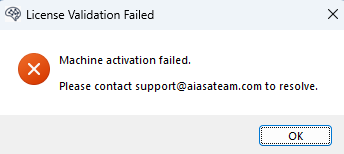
If the license is valid, the app will activate and open normally. If there’s a problem, such as a mismatch between your key and machine fingerprint, you’ll see an error message with instructions to contact support.

💬 Managing Chats
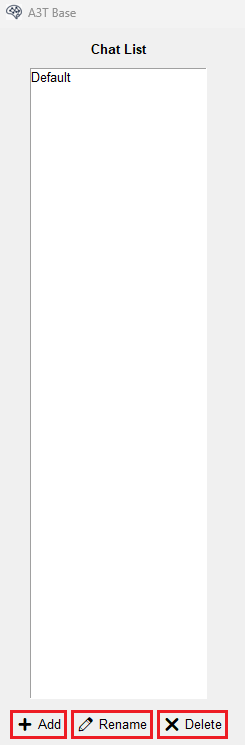
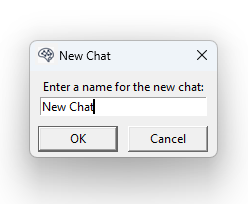
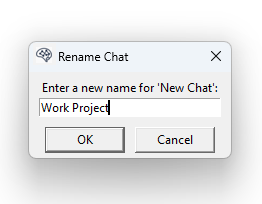
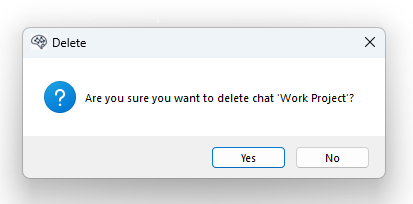
Every interaction you have is saved in a session file along with datetime stamp. A3T comes with a Default chat, but you can create as many as you need and rename/delete them anytime. Just keep in mind if you delete a chat, you lose all the chat history forever.
🧠 Trevor and the Research Team
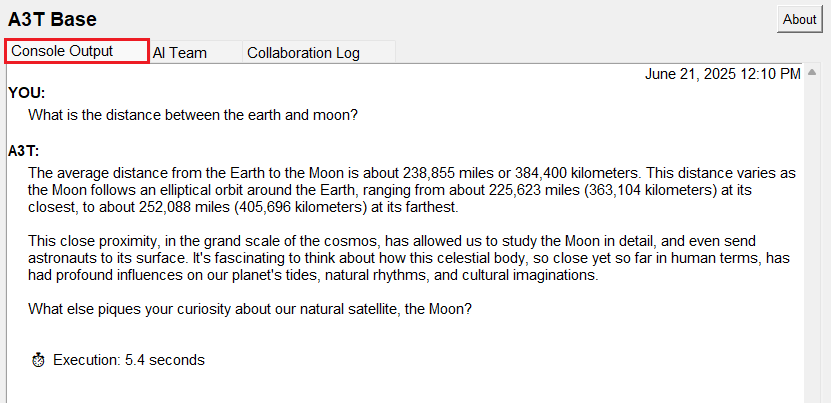
A3T offers two distinct ways to think through a problem: Trevor and the Research Team.
Trevor is your personal thinking assistant designed to help you clarify ideas, reframe tough questions, and gently guide your reasoning forward. It’s ideal for fast insights, exploratory prompts, or when you just want to think out loud with something intelligent or ask a quick question.
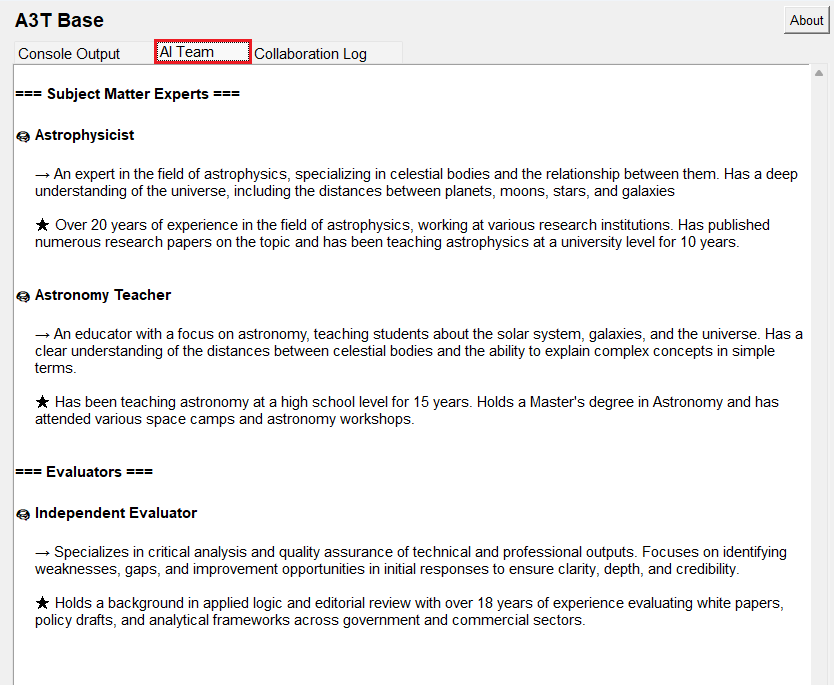
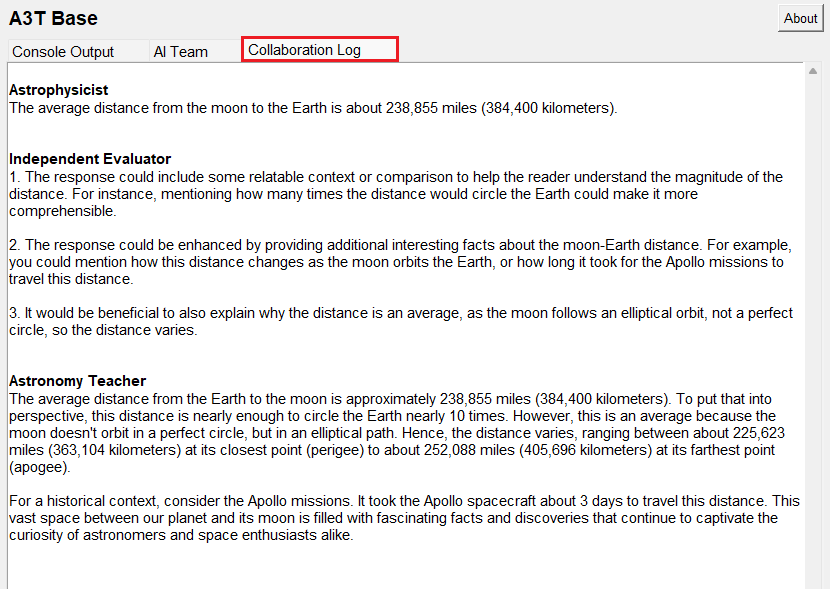
The Research Team is different. It brings three distinct minds to your question: two independent subject matter experts (SMEs) who each take their own approach, and one evaluator who challenges assumptions and identifies gaps. Together, they generate, critique, and refine a full response. Because the Research Team involves multiple personas it takes a little longer to complete, but the output is often more thoughtful, nuanced, and resilient. You can review the team composition in the AI Team tab or review the team's interaction in the Collaboration Log tab. Use the Research Team when your question deserves multiple perspectives or a carefully structured answer.
Oh, and one more thing: You can copy text from any of the three tabs and use it however you need. If you forget to save something, don’t worry the Chat History automatically preserves everything for you.
Trevor Mode

Research Team Mode


🌐 Internet Tools
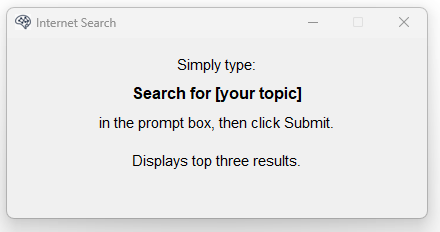
Search the Web
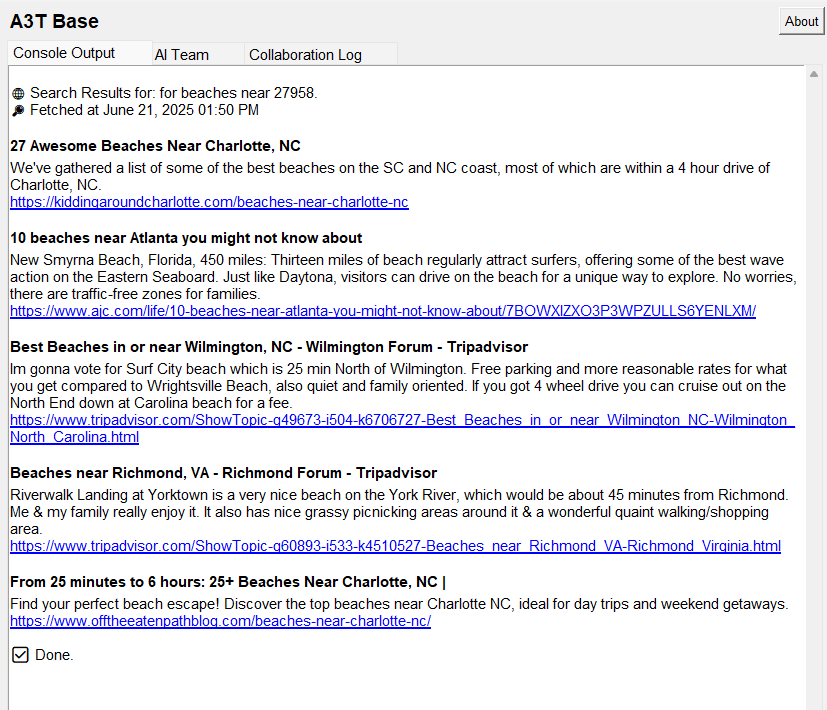
Type a prompt like "Search for" AI regulations in Europe and click on either Trevor or Research Team (it doesn't matter). A3T will fetch the top five results from Brave Search.
Summarize a Web Page
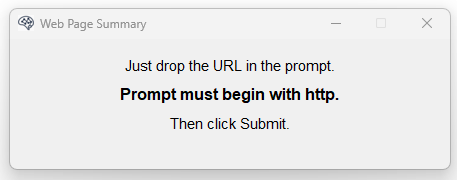
Paste any single URL starting with "http" and click on either Trevor or Research Team (it doesn't matter). A3T will visit and summarize it for you as long it is open to the public.

📁 Upload a File
A3T can extract and analyze documents including .txt, .pdf, .docx, and .xlsx.

After uploading, you can edit the prompt area and click either agent mode to run analysis.
🧭 Help Popups
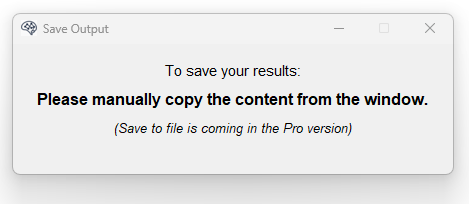
A3T Base includes several helpful built-in guides.

🧾 Licensing and Support
Your license key is securely stored and linked to your device. If you switch machines or lose access, contact us for assistance.
Need help? Reach out at: support@aiasateam.com